Remote Access VPN
Last updated: June 10, 2025
Setup for VPC
Log in to the Web Portal and select Networking. Under the VPC tab, select your VPC.
If no VPC is created please, Click Here.
Under the VPC select the Settings tab and click Remote Access VPN.
Click the slider to Enable Remote Access VPN.
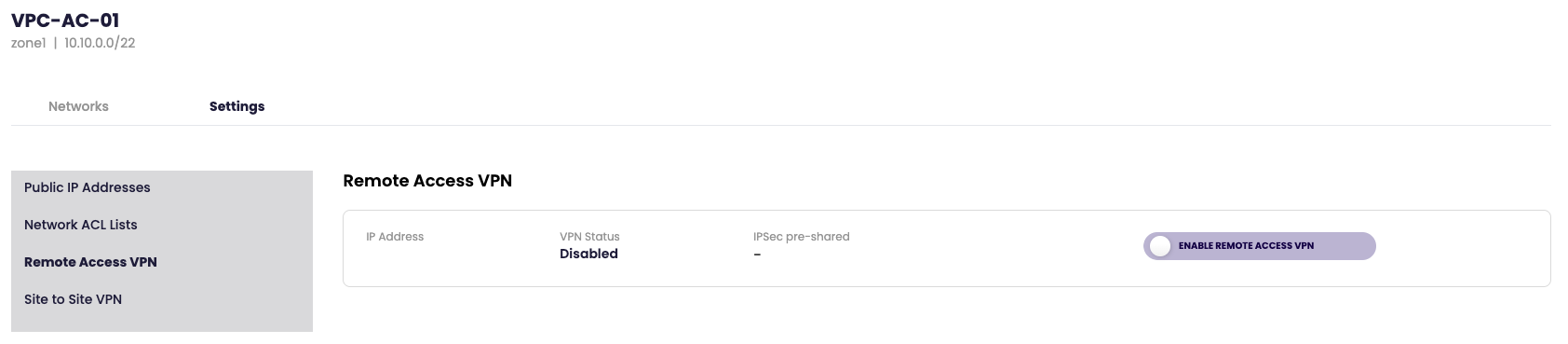
Once the Remote Access VPN is enabled the IPSec pre-shared key will be automatically generated.
Click on + Add New User and on New VPN User popup create username and password.
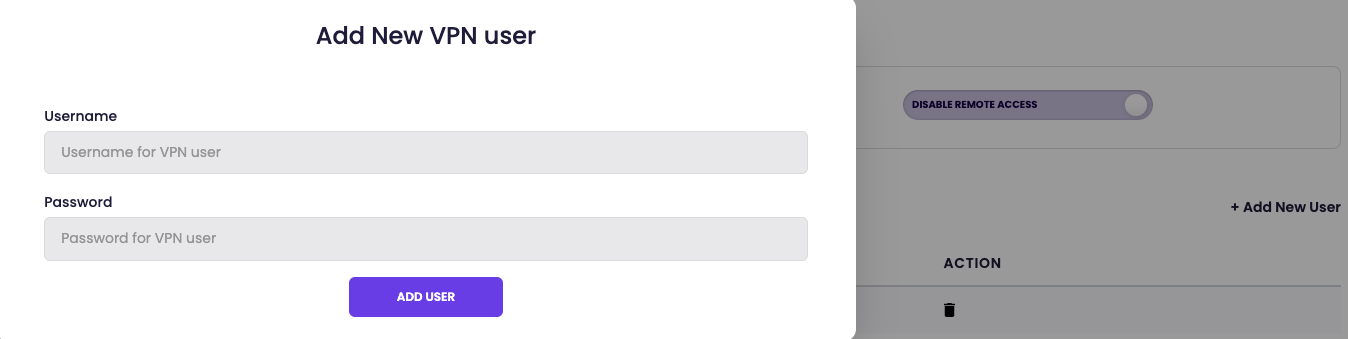
With the Public IP Address, IPSec pre-shared key, username, and password. The client can be setup.
Remote Access VPN Setup for Elastic Network
- Log in to the Web Portal and select Networking. Under the Elastic Network tab, select your Elastic Network.
If no Elastic Network is created please, Click Here.
Under the Elastic Network select the Settings tab and click Remote Access VPN.
Click the slider to Enable Remote Access VPN.
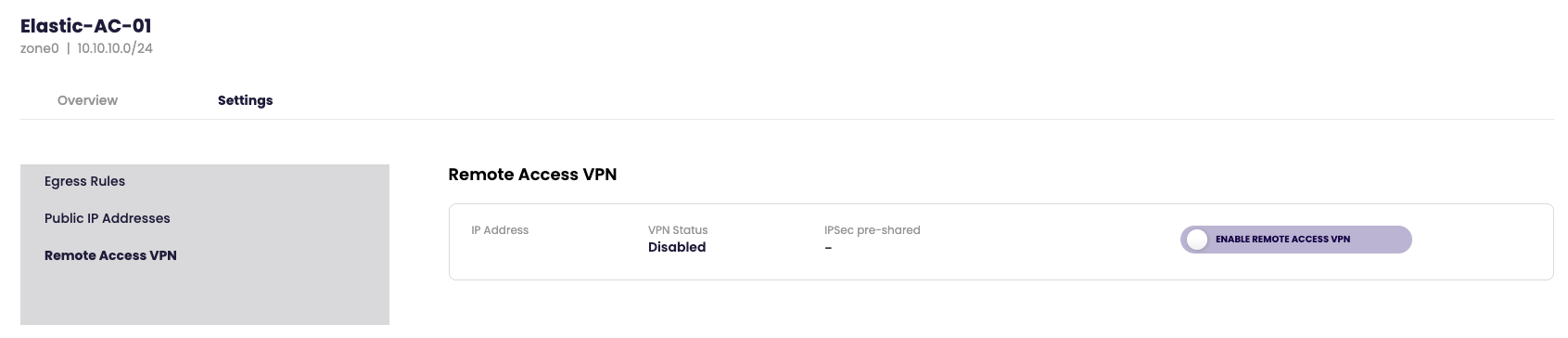
Once the Remote Access VPN is enabled the IPSec pre-shared key will be automatically generated.
Click on + Add New User and on New VPN User popup create username and password.
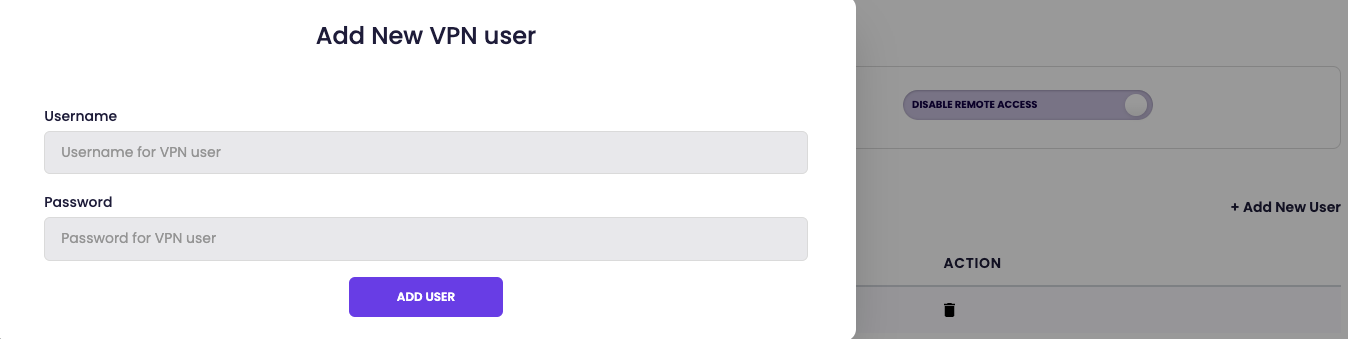
With the Public IP Address, IPSec pre-shared key, username, and password. The client can be setup.
VPN Connection VIA OS
MacOS
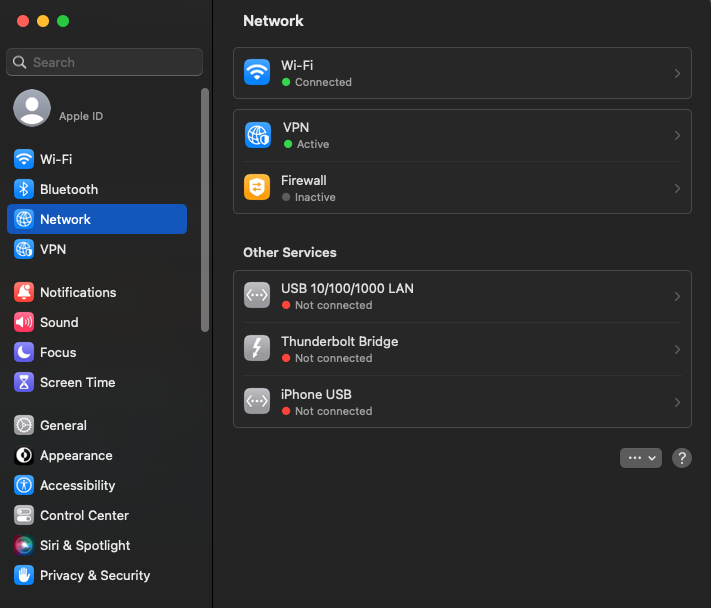
In System Settings, click on Network on the left pane and then click on VPN.
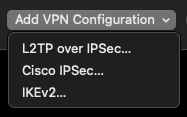
At the bottom right, click Add VPN Configuration dropdown and select L2TP over IPSec.
Fill out the following fields.
Display name: unique name for VPN connection
Server address: Public IP Address of VPC
Account name: VPN username
Shared secret: IPSec pre-shared key
Click on Create once created test the connection by trying on the slider.

Windows
Select Start > Settings > Network & internet > VPN > Add VPN.
Under Add a VPN connection, do the following:
For VPN provider, choose Windows (built-in)
In the Connection name box, enter a unique name for VPN connection
In the Server name or address box, enter the Public IP address for the VPN server
For VPN type, select L2TP/IPsec and enter your pre-shared key
Select Save
To connect to the new VPN connection, select Start > Settings > Network & internet > VPN
Next to the VPN connection you want to use, select Connect
When prompted, enter your username and password
To verify that the VPN is connected look on the VPN settings page, the VPN connection name will display Connected underneath it.
In Windows you might need to go into Advanced Options > Edit More VPN Properties > Security Tab > Allow These Protocols > and check "Challenge Handshake Authentication Protocal (CHAP)"
If no virtual machine is attached to the Elastic Network the client will fail to connect to the Remote Access VPN.